
Load transactions and account operations from csv files
In this section we will look at how to upload market transactions and account operations via CSV file to your Wallible dashboard.
Intro
On Wallible you can import your portfolio transactions via AI-powered import or via CSV. There is no need to report dividends and splits in the file: we automatically reconcile them after the import phase. Here are the ways you can proceed:
- You can upload a CSV, PDF, or Excel (XLS/XLSX) file and let the AI automatically recognize your transactions.
- Alternatively, you can use the generic CSV file made available by Wallible, which can be downloaded directly from the platform (explained below).
- To understand how to manage cash with deposits/withdrawals, see Portfolio Liquidity Management . For manual entry of transactions and trades, see Load Transactions and Account Operations Manually .
Load transactions with AI
Wallible offers automatic transaction import through Artificial Intelligence (AI) to make portfolio management faster and more accurate. The AI recognizes movements from CSV, PDF, and Excel (XLS/XLSX) files and assigns a Confidence Level to each transaction:
- 100%: the security is recognized with maximum confidence.
- 0%: the security is not recognized.
Upload the file and let the AI analyze all transactions automatically, identifying securities, quantities, and prices. The confidence level helps you validate the import quickly.
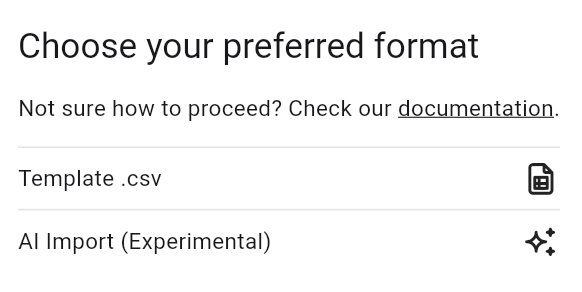
With AI-powered automatic import you can transfer all your transactions in just a few clicks. The recognition technology analyzes CSV, PDF, and Excel files, finds securities, and assigns a confidence level to each transaction. This makes importing simpler and more accurate.
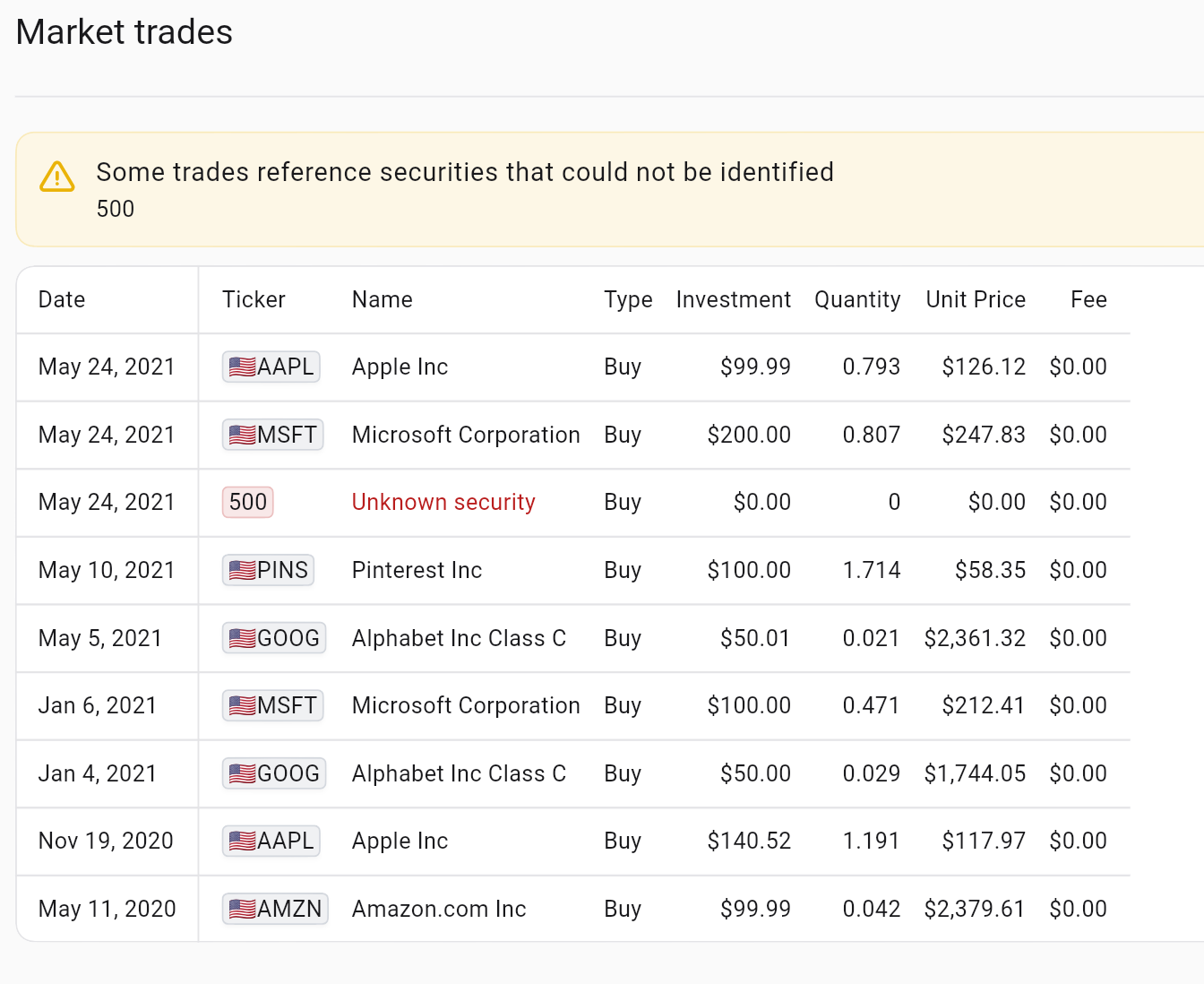
Unrecognized securities and how to handle them
If a security is not recognized or has low confidence, you have two options:
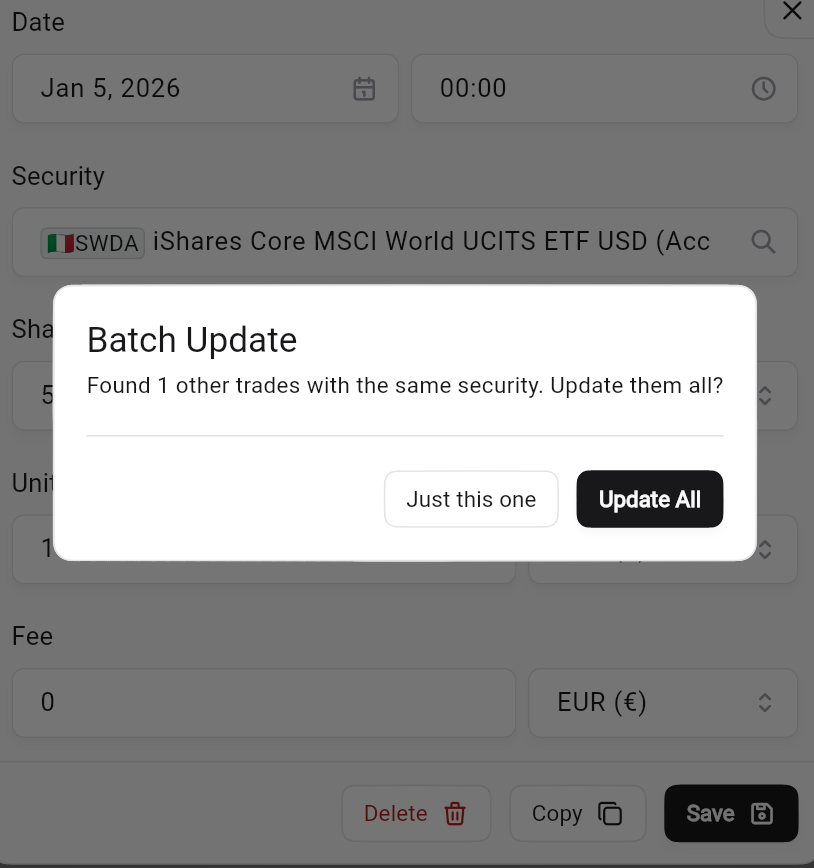
Manual entry of the security. After manual entry, Wallible will automatically update all other transactions with the same security in your portfolio.
Request support via form to have the security recognized. Fill out the form here: support form
Import via Wallible generic CSV
Import your transactions with a CSV file compatible with the Wallible standard. This method is useful for data already exported from other services or external tools. The file is simple to fill in: just add the data of your transactions and, if present, of the account operations following these rules:
- date enter the date of the transaction or account operation (
YYYY-MM-DDT00:00:00format). - ticker / isin you can enter the ticker or the ISIN of the security (it is not necessary to indicate both).
- exchangeCode enter the code of the reference exchange if you know it; otherwise Wallible will assign it automatically and you can modify it later from the platform.
- quantity indicates the quantity purchased or sold:
- positive values for purchases;
- negative values for sales.
- price enter the unit price of the security.
- priceCurrencyCode the reference currency (e.g. EUR, USD).
- fee / feeCurrencyCode any commissions and the related currency (if not present, leave blank).
Account operations (deposits and withdrawals)
To specify deposit or withdrawal operations from the account:
- use
CASHin the ticker column; - indicates the quantity:
- positive for a deposit,
- negative for a withdrawal.

Generic CSV example
date,ticker,isin,exchangeCode,quantity,price,priceCurrencyCode,fee,feeCurrencyCode
2020-09-01T00:00:00,CASH,,,,10000.0,1,EUR,,
2020-09-02T00:00:00,SWDA,IE00B4L5Y983,MI,100.0,56.81,EUR,1.0,EUR
2021-09-13T00:00:00,AAPL,US0378331005,US,30.0,126.71,EUR,-0.0,EUR
2023-05-01T00:00:00,,,,50.0,92.01,EUR,10.0,EUR
2024-12-16T00:00:00,SWDA,IE00B4L5Y983,MI,-10.0,105.8,EUR,10.0,EUR
2025-09-08T00:00:00,CASH,,,,-3000.0,1,EUR,,
How to download the CSV from Degiro
To obtain the file to upload to Wallible, download the CSV directly from the Degiro portal. The process is simple and requires only a few steps:
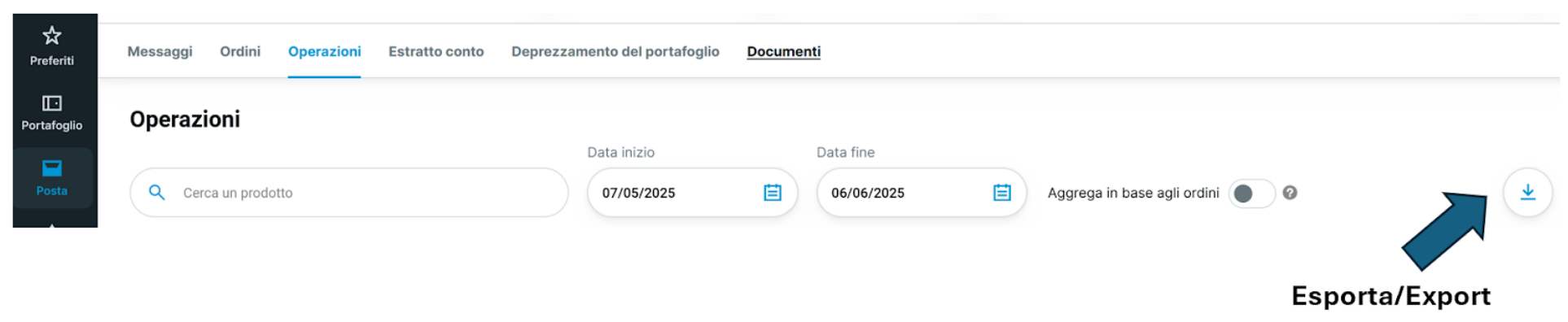
Route: Mail Operations Inserting Start Date and End Date Export Comma Separated File (CSV)
Once you have downloaded the file, you can upload it to Wallible to import your operations. This CSV should be uploaded via AI import.
Summary diagram
I turn Mail Operations Insertion of “Start Date” and “End Date” Export Comma Separated File (CSV)
How to download the CSV from Directa
To obtain the file to upload to Wallible, download the CSV directly from the Directa portal. Also in this case the procedure is quick and guided:
Route: Transactions All transactions Insertion of Start Date and End Date Export Comma separated file (CSV)
Once you have the file, you can upload it to Wallible to import your operations. This CSV should be uploaded via AI import.
Summary diagram
Direct Movements All movements Insertion of “Start Date” and “End Date” Export Comma separated file (CSV)

How to download the report from eToro (XLS)
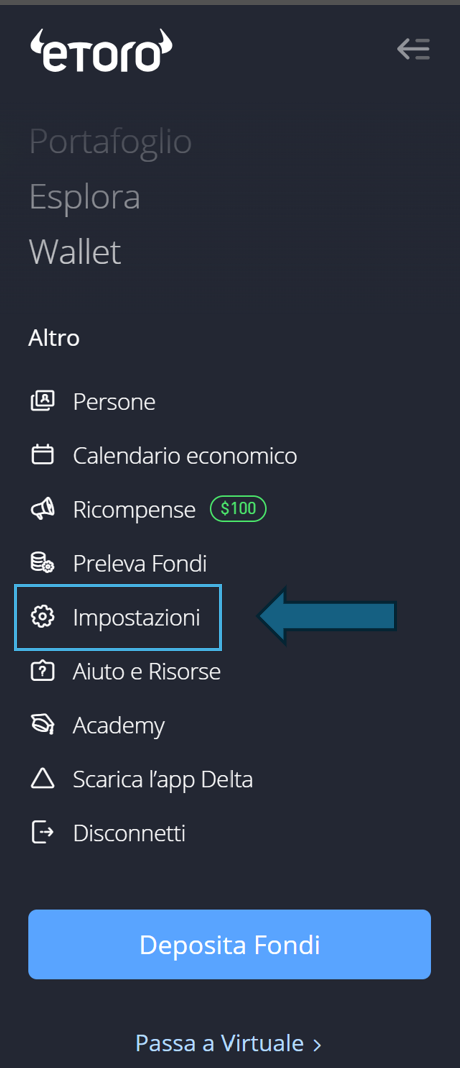
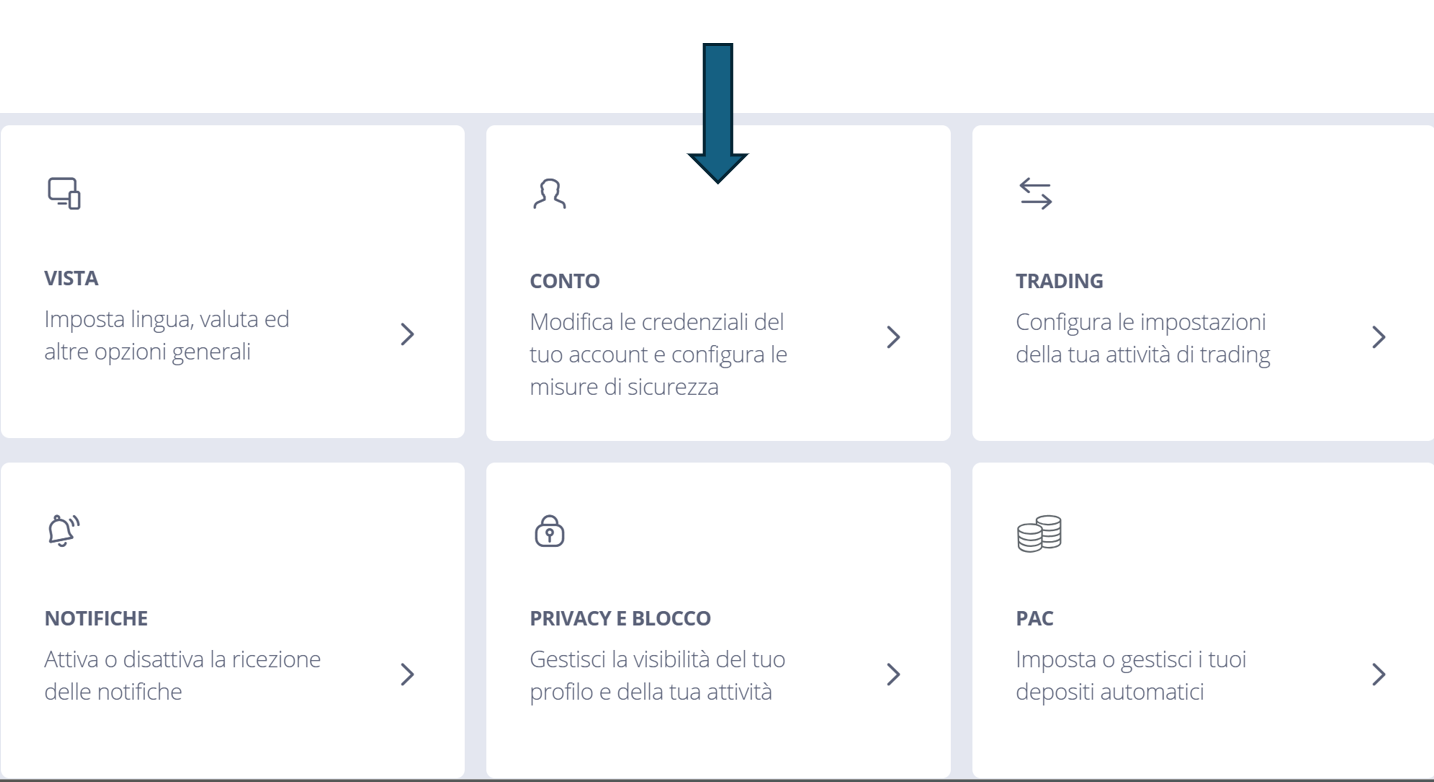
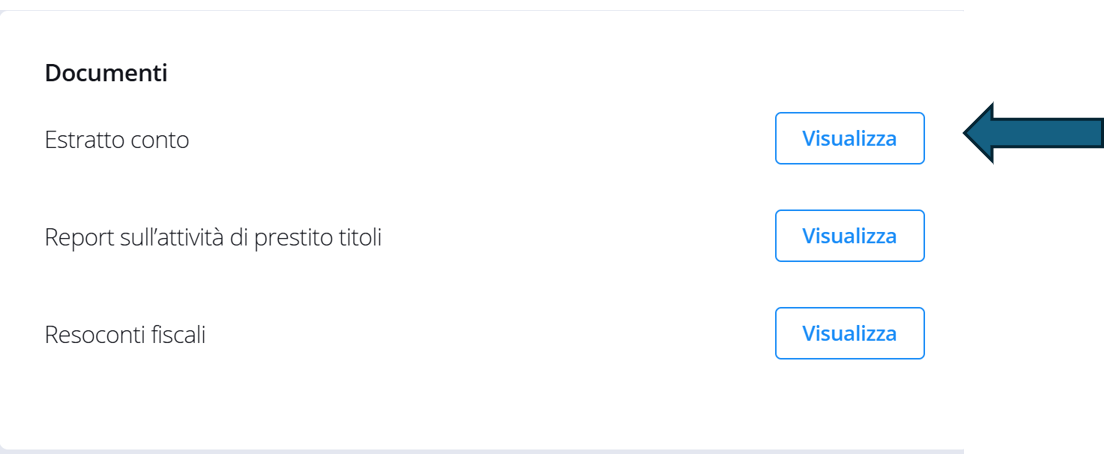
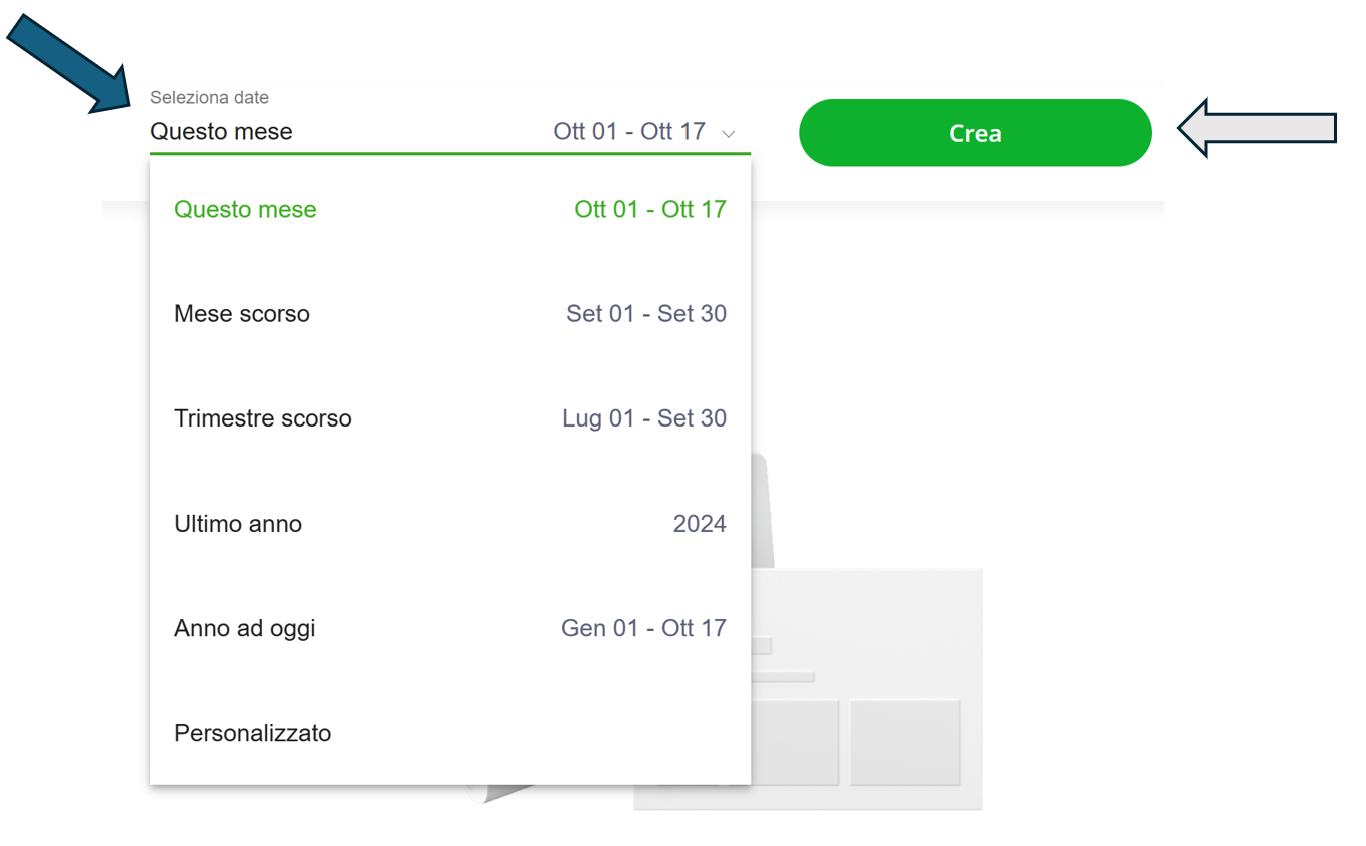
To obtain the file to upload to Wallible, download the XLS report from the eToro portal. Follow these steps:
- From the homepage click on Settings.
- Go to the Account section.
- Under Bank Statement select View.
- Set the dates of interest and press Create.
- Download the file via the green xls icon.

You don’t need to convert the file as CSV, just upload this format directly to Wallible. This XLS should be uploaded via AI import.